Overview #
The DnXT Administrator is the central control panel for managing your entire DnXT Suite environment. From user accounts and security policies to workflow automation and system integrations, Administrator gives you complete control over how your organization uses DnXT Publisher, DnXT Reviewer, and all connected services.
This guide walks you through your first steps in the Administrator application — how to access it, what you’ll find on the dashboard, and the recommended sequence for configuring your system.
DnXT Administrator is designed for system administrators, IT managers, and regulatory operations leads who need to configure, monitor, and maintain the DnXT platform. Most features require the Administrator role.
Accessing DnXT Administrator #
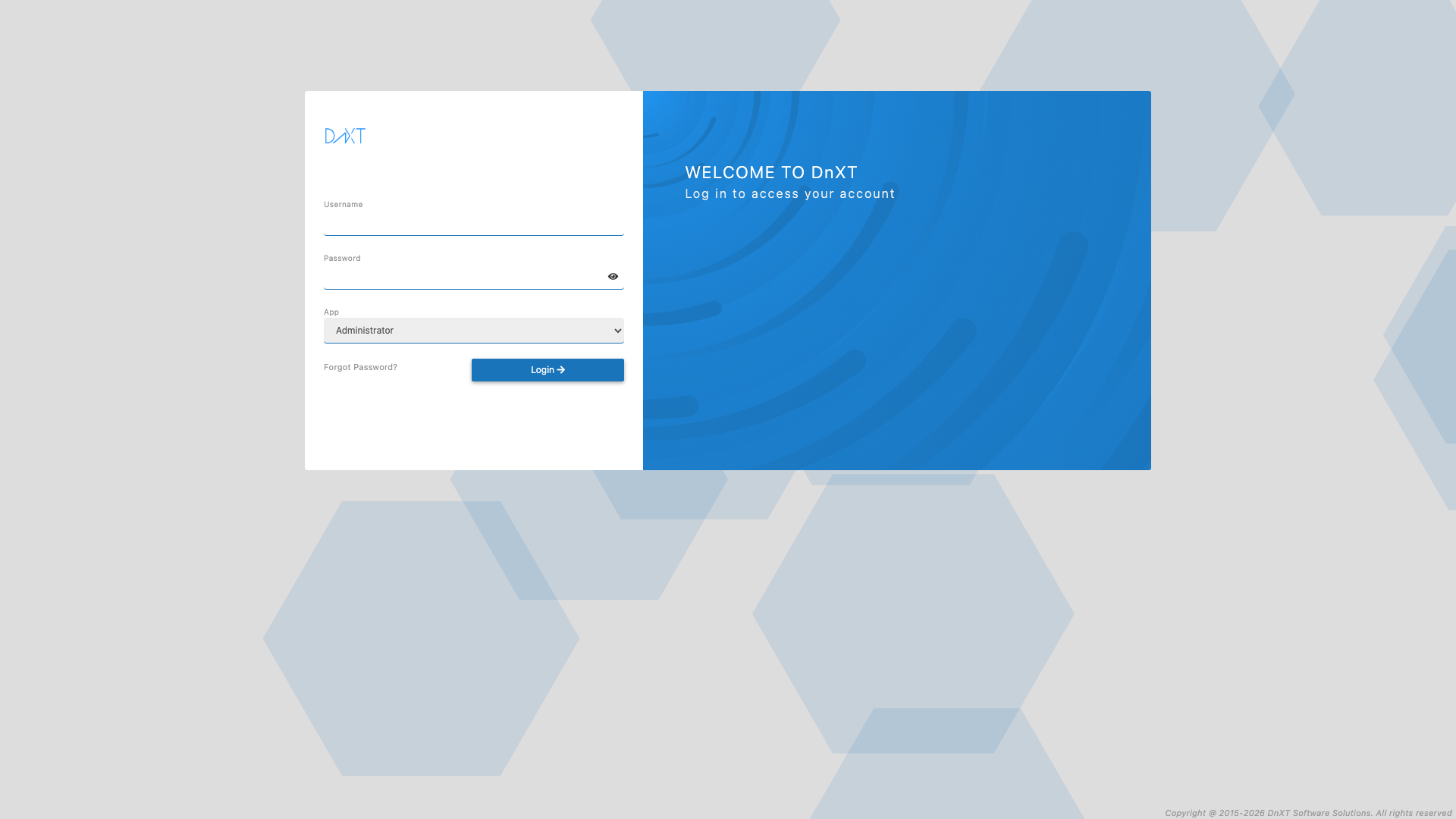
From the Login Screen #
- Open your browser and navigate to your organization’s DnXT URL (e.g.,
https://yourcompany.dnxtsolutions.com). - Enter your Username and Password on the login screen.
- Click Login.
- If your account has access to multiple applications, you will be directed to the default application. To switch to Administrator, click your username in the top-right corner and select Admin from the application list.
From Another DnXT Application #
- Click your username in the top-right corner of the header bar.
- In the dropdown menu, select Admin.
- The application will switch to the Administrator view without requiring a new login.
The Administrator Dashboard #
When you open DnXT Administrator, you land on the Dashboard — a real-time overview of system activity and health.
Module Statistics #
The top section displays horizontal bar graphs showing key statistics for each DnXT module (Publisher, Reviewer, Planner). These bars provide a quick visual summary of the number of dossiers, submissions, documents, and other entities across the system.
Logins and Users Chart #
Below the statistics, a line chart tracks daily login activity and unique user counts over a configurable time window. You can adjust the chart duration using the Duration dropdown:
- 7 days — Last week of activity
- 14 days — Last two weeks
- 30 days — Last month (default)
- 60 days — Last two months
- 90 days — Last quarter
The chart plots two lines: Logins (total login events per day) and Users (unique users per day). Click Save to persist your preferred duration setting.
Active Users Table #
The bottom section shows a real-time Active Users table powered by Server-Sent Events (SSE). This table updates automatically as users log in and out. Columns include:
| Column | Description |
|---|---|
| Username | The user’s login name |
| Login Status | Green circle = currently active; Grey circle = session idle |
| Active Session | Duration in minutes since the user’s current session started |
| Last Login | Date and time of the user’s most recent login |
| IP Address | The IP address of the user’s connection |
| Browser | Browser icon (Chrome, Firefox, Safari, Opera, or Edge) |
| End Session | Action button to forcibly terminate a user’s session |
Administrator Sidebar Navigation #
The left sidebar in Administrator provides access to all administrative modules. Click any menu item to navigate to that section.
| Menu Item | Purpose |
|---|---|
| Dashboard | System statistics, login charts, and active user monitoring |
| User Management | Create and manage user accounts, roles, and groups |
| Permission Management | Configure module-level and resource-level access controls |
| Audit Trail | View and export the complete system activity log |
| Configurations | System settings: tenants, mail, SSO, AI, password policies, repositories, and more |
| Workflow Manager | Design and manage multi-step approval and review workflows |
| Metadata Manager | Define company, product, substance, and other reference data |
| PDF Rendering | Configure PDF profiles, compliance rules, and validation |
| Object Manager | Define custom object types, schemas, and database tables |
| Attribute Manager | Manage planning and eCTD submission attributes |
Recommended Setup Sequence #
If you are configuring DnXT for the first time, follow this recommended order to ensure all dependencies are in place:
Step 1: Tenant and System Configuration #
- Navigate to Configurations > Tenants Console.
- Verify or create your tenant configuration with the correct database connection settings.
- Configure Password Configuration to set your organization’s password policies.
- Set up Mail Configuration with your SMTP server details so the system can send email notifications.
Step 2: Authentication #
- If using SSO, navigate to Configurations > SSO Configuration and enter your identity provider settings.
- If using LDAP, configure the LDAP connection parameters.
- Test the authentication flow by logging in with an SSO or LDAP user.
Step 3: User Accounts and Roles #
- Navigate to User Management > User Roles and define the roles your organization needs.
- For each role, go to Permission Management > Module Access to set the feature-level permissions.
- Create user accounts in User Management > Users.
- Create user groups in User Management > User Groups and assign users to groups.
Step 4: Repository and Storage #
- Navigate to Configurations > Repository Configuration.
- Register file system repositories or connect external storage (Veeva Vault, Egnyte, Box).
- Verify that Publisher and Reviewer can access the configured repositories.
Step 5: Metadata and Workflows #
- Use the Metadata Manager to define your companies, products, substances, and other reference data.
- Use the Workflow Manager to create approval and review workflows for your submission processes.
Step 6: Advanced Configuration #
- Configure AI Configuration if your organization uses DnXT AI features.
- Set up PDF Rendering profiles for your target regions (FDA, EMA, PMDA, Health Canada).
- Define custom object types and attributes in the Object Manager and Attribute Manager if needed.
Understanding Administrator Permissions #
Access to Administrator features is controlled by the user’s role. The system supports these key administrative roles:
| Role | Access Level |
|---|---|
| Super Admin | Full access to all modules including Tenants Console; can manage multiple tenants and see tenant filters throughout the UI |
| Administrator | Full access to all modules within their assigned tenant |
| Viewer | Read-only access to view configurations and user data |
Key Interface Patterns in Administrator #
DnXT Administrator uses several consistent interface patterns across its modules:
Tabbed Views #
Most modules organize content into tabs. For example, User Management has three tabs: Users, User Roles, and User Groups. Click a tab name to switch between views. The active tab is highlighted with a blue underline.
Master-Detail Layout #
Many modules use a list-on-the-left, detail-on-the-right layout. Select an item from the list (or table) to display its properties in the detail panel. Changes in the detail panel are saved with the Save button.
Toolbar Actions #
Each data table includes a toolbar with standard actions:
- Add — Create a new record
- Delete — Remove selected record(s)
- Export — Download data as CSV
- Refresh — Reload the table data
Accordion Sections #
Detail panels often group related fields into collapsible accordion sections. Click a section header to expand or collapse it. For example, user details are grouped into Basic Info, Role & Access, Compliance, and Security sections.
FAQ #
Can I access Administrator from any browser? #
Yes. DnXT Administrator works in all supported browsers (Chrome, Firefox, Edge, Safari). Chrome is recommended for the best experience.
How do I know which version of DnXT I am running? #
Click the lightbulb icon in the top-right corner of the header bar and select About. The dialog displays the current version number and build information.
Is there a way to undo configuration changes? #
Most configuration changes take effect immediately when saved. DnXT does not provide a built-in undo feature for system configurations. Use the Audit Trail to review what changes were made and when, and manually revert if needed.
Can I configure DnXT for multiple tenants? #
Yes. If you have the Super Admin role, you can create and manage multiple tenants in Configurations > Tenants Console. Each tenant has its own isolated set of users, data, and configurations.
What should I do if I’m locked out of Administrator? #
Contact your organization’s platform administrator or DnXT support. If you are the sole administrator, contact DnXT Solutions support at su*****@***********ns.com for account recovery assistance.


