Creating a New Dossier Plan #
Creating a new dossier is the first step in building a regulatory submission in DnXT Publisher. A dossier serves as the top-level container for all submissions (sequences) related to a specific product in a specific regulatory region. This guide walks you through the complete dossier creation process, from navigating to the creation form through configuring region-specific details and setting up your first submission.
Before You Begin #
Before creating a new dossier, ensure you have the following information ready:
- Target Region — The regulatory region for the submission (US, EU, CA, JP, AU, ZA, CH, GCC, TH, SG, HR, or another supported region).
- Target Country — The specific country within the region (some regions like EU or GCC have multiple member countries).
- Product Name — The name of the pharmaceutical product being submitted.
- Application Type — The type of regulatory application (e.g., NDA, ANDA, BLA for US; MAA for EU; NDS for Canada).
Step-by-Step: Creating a New Dossier #
Step 1: Navigate to the Dossier Library #
Navigate to Dashboard > Dossier Library by clicking Dossier Library in the left navigation panel or clicking Open Dossier Library on the Dashboard.
Step 2: Open the Create Dossier Panel #
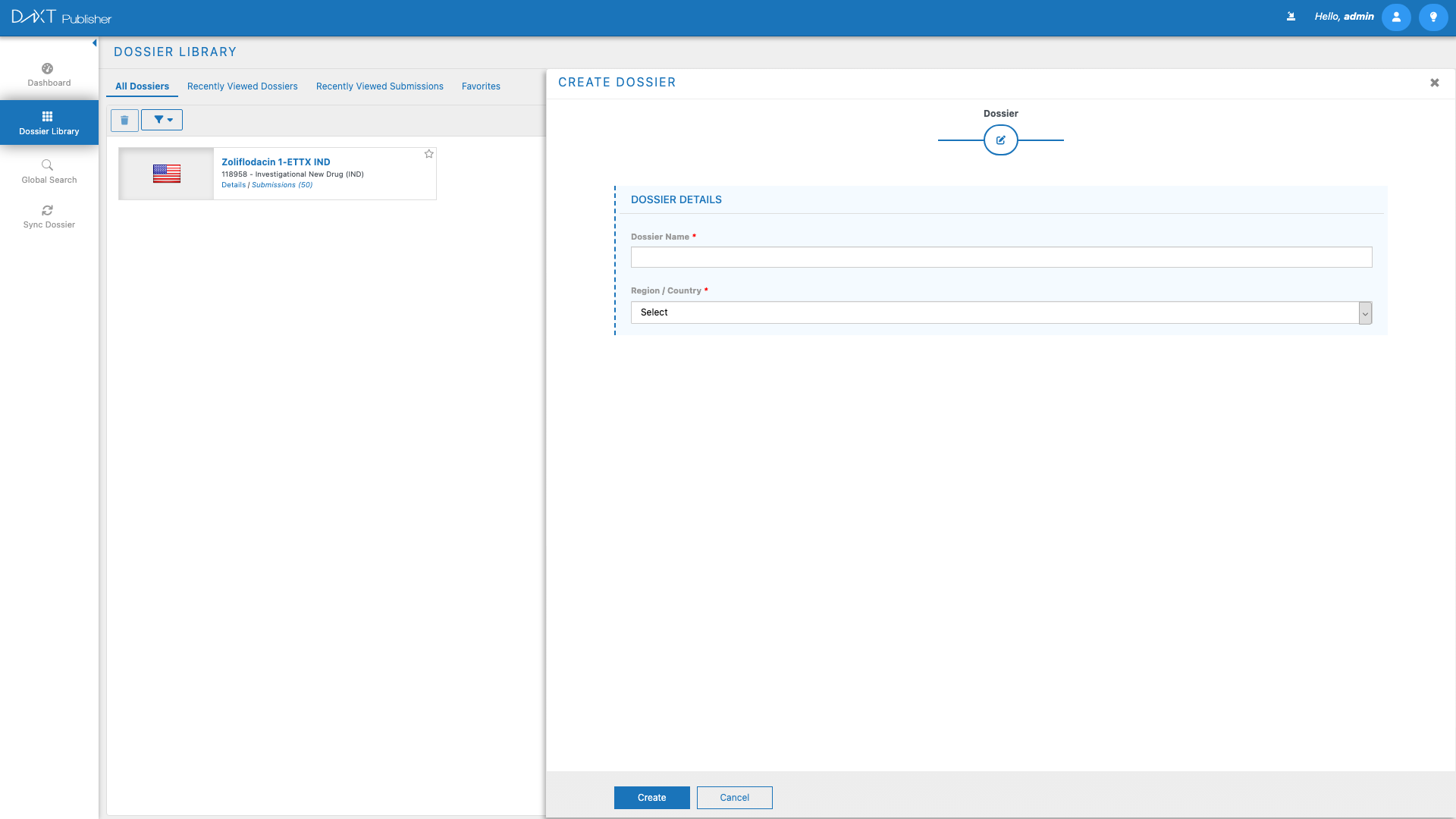
Click the Create Dossier button in the Dossier Library toolbar. The Create Dossier panel will open, presenting you with a form to configure the new dossier.
Step 3: Select a Region #
The first field in the Create Dossier form is Region. Click the Region dropdown to see a list of all supported regulatory regions. Select the region that corresponds to the health authority you will be submitting to.
Supported regions include:
| Region Code | Region Name | Health Authority |
|---|---|---|
| US | United States | FDA |
| EU | European Union | EMA |
| CA | Canada | Health Canada |
| JP | Japan | PMDA |
| AU | Australia | TGA |
| ZA | South Africa | SAHPRA |
| CH | Switzerland | Swissmedic |
| GCC | Gulf Cooperation Council | Various GCC authorities |
| TH | Thailand | Thai FDA |
| SG | Singapore | HSA |
| HR | Croatia | HALMED |
Step 4: Select a Country #
After selecting a region, the Country dropdown will populate with the countries available within that region. For single-country regions like US, JP, or AU, the country is automatically selected. For multi-country regions like EU or GCC, select the specific target country from the list.
Step 5: Enter Product Information #
Enter the Product Name in the product field. This is the name of the pharmaceutical product that the dossier covers. You may also be able to select from a list of previously registered products in your organization’s product catalog, depending on your system configuration.
Step 6: Configure Application Details #
Depending on the selected region, additional fields may appear for application-specific configuration:
- Application Type — Select the type of regulatory application (NDA, ANDA, BLA, IND, MAA, NDS, etc.). The available options depend on the selected region.
- Application Number — If you have an existing application number from the health authority, enter it here. For initial submissions, this may be left blank.
- Dossier Name — Optionally provide a descriptive name for the dossier. If left blank, a default name will be generated based on the region, product, and application type.
Step 7: Create the Dossier #
Review your selections and click the Create button. Publisher will create the dossier with the appropriate eCTD TOC structure for the selected region. You will see a confirmation message, and the new dossier will appear in the Dossier Library.
What Happens After Creation #
When a dossier is created, Publisher automatically:
- Generates the eCTD TOC structure — Based on the selected region, the appropriate Module 1 regional structure and Modules 2-5 ICH structure are created.
- Creates an initial submission — A first submission (sequence 0000) is created within the dossier as a starting point.
- Applies regional templates — If your organization has configured default templates for the selected region, they are applied automatically.
- Sets workflow status — The new dossier and submission are set to an initial “Draft” status.
You can now double-click the new dossier in the Dossier Library to open it in the TOC Editor and begin placing documents.
Configuring Dossier Metadata After Creation #
After creating a dossier, you may want to add additional metadata. Click the dossier in the Dossier Library to open the Submission Browser Sub-Panel, where you can configure:
ICH Details #
- Products — Add drug product names and details.
- Substances — Add active pharmaceutical ingredient (API) substance information.
- Excipients — List excipients used in the formulation.
- Indications — Specify the therapeutic indications for the product.
Contacts #
Add regulatory contact information for the dossier, including names, roles, email addresses, and phone numbers of key contacts at your organization and at the health authority.
Planning Attributes #
Set key planning dates and milestones such as target submission date, expected review timeline, and internal deadlines. These attributes are used by the Plan Library and can help coordinate multi-region submission strategies.
Creating Dossiers from Templates #
If your organization has set up templates in the Template Library, you can accelerate dossier creation by starting from a template. Templates pre-populate the TOC structure with region-specific sections and commonly used nodes, reducing setup time significantly.
To create a dossier from a template:
- Click Create Dossier in the Dossier Library toolbar.
- In the Create Dossier panel, look for a Template dropdown or selection option.
- Select the desired template from the list.
- Complete the remaining fields (region, country, product) as described above.
- Click Create.
The new dossier will include all the TOC structure and pre-configured sections defined in the template. See Template Library for more on creating and managing templates.
Common Dossier Types by Region #
| Region | Common Application Types |
|---|---|
| US (FDA) | NDA, ANDA, BLA, IND, NDA Supplement, ANDA Supplement |
| EU (EMA) | MAA, Variation Type IA, Type IB, Type II, Renewal, PSUR |
| CA (Health Canada) | NDS, ANDS, SNDS, SANDS |
| JP (PMDA) | New Drug Application, Partial Change Application, Re-examination |
| AU (TGA) | New Registration, Variation, Evaluation |
Frequently Asked Questions #
Can I change the region of an existing dossier? #
No. The region and country are set at creation time and cannot be changed afterward because the eCTD TOC structure is region-specific. If you need a different region, create a new dossier.
Can I create multiple dossiers for the same product? #
Yes. It is common to have multiple dossiers for the same product — one per regulatory region. Each dossier is an independent container with its own submissions and TOC structure.
What happens if I select the wrong application type? #
The application type can typically be updated after creation through the dossier details panel. However, if the application type significantly affects the Module 1 structure, you may need to create a new dossier. Check with your administrator.
How many submissions can a dossier contain? #
There is no hard limit on the number of submissions within a dossier. A dossier can contain as many sequences as needed to represent the complete lifecycle of the application.
Can I clone an existing dossier? #
Publisher does not currently support direct dossier cloning. However, you can use templates to create new dossiers with the same TOC structure, and you can use the Plan Library to coordinate creating similar dossiers across multiple regions.
Related Articles #
- Dossier Library: Managing Dossiers — Browse and manage dossiers after creation.
- Submission Authoring with the TOC Editor — Start authoring in the TOC Editor.
- Template Library — Create and manage reusable dossier templates.
- Plan Library: Working with Plans — Coordinate multi-region dossier creation with plans.
- Document Lifecycle and Status — Understand document lifecycle operations within your dossier.


