Dossier Library: Managing Dossiers #
The Dossier Library is the central hub for organizing, browsing, and managing all your dossiers and submissions in DnXT Publisher. From this view you can search across your entire dossier collection, apply sophisticated filters, toggle between visual layouts, manage dossier metadata, and navigate directly into the TOC Editor for detailed authoring work. This guide covers every feature of the Dossier Library in detail.
Navigating to the Dossier Library #
You can reach the Dossier Library in two ways:
- Click Dossier Library in the left navigation panel from any screen in Publisher.
- Click the Open Dossier Library button on the Dashboard Tasks tab.
Library Tabs #
The Dossier Library is organized into six tabs, each providing a different lens through which to view your data. Click any tab header to switch views.
All Dossiers (Default) #
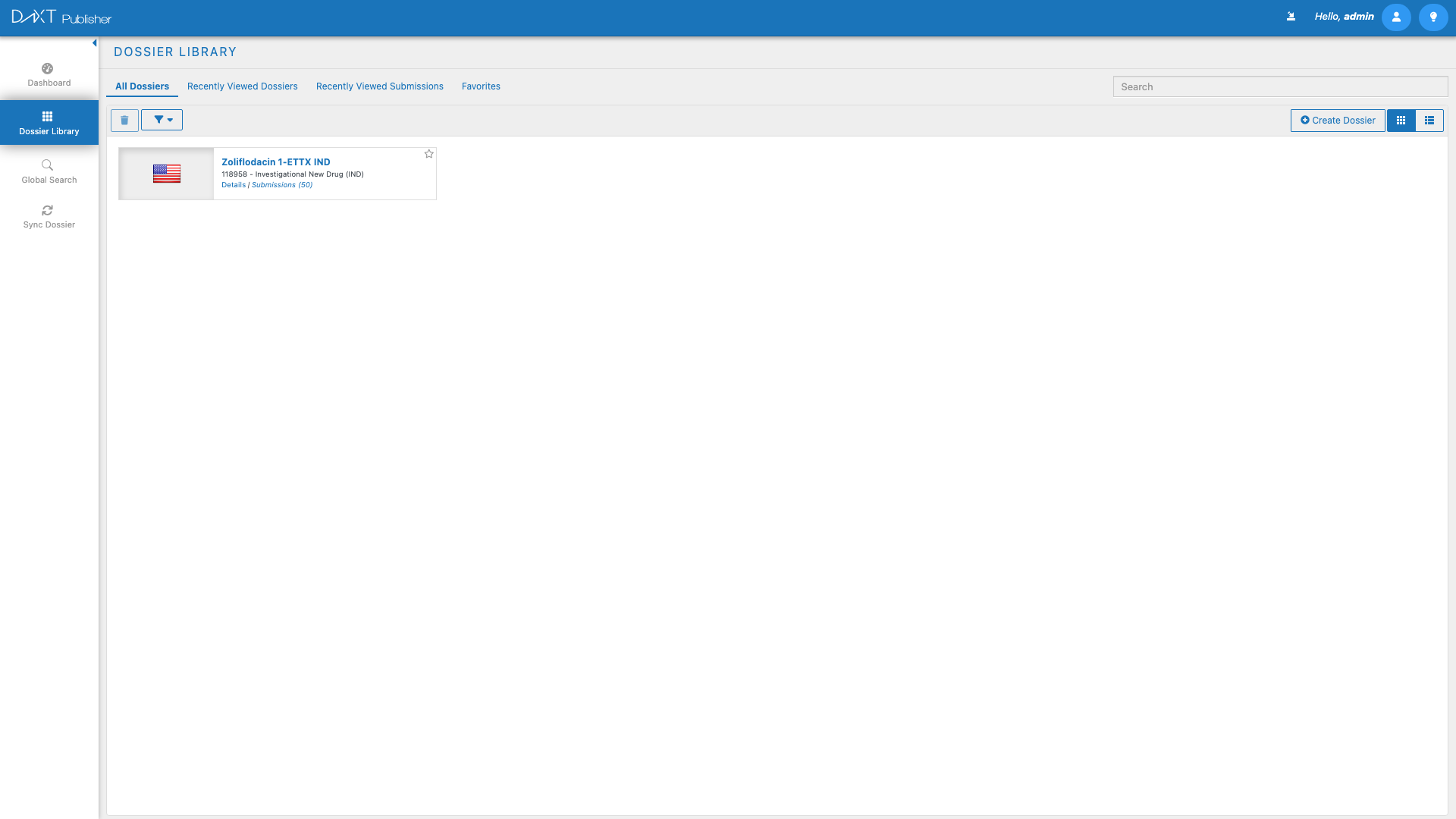
The All Dossiers tab displays every dossier you have access to, presented either as tiles or list rows depending on your selected view mode. Each dossier card shows the dossier name, region, country, product, and key metadata such as creation date and last modified date. This is your primary starting point for finding and opening dossiers.
All Submissions #
The All Submissions tab provides a flat view of all submissions across all dossiers. This is useful when you need to find a specific submission by sequence number, submission type, or date without first drilling into its parent dossier. Each submission entry shows the sequence number, parent dossier name, submission type, status, and dates.
Recently Viewed Dossiers #
The Recently Viewed Dossiers tab lists dossiers you have opened recently, ordered by most recent access. This tab is invaluable for quickly returning to work in progress without searching.
Recently Viewed Submissions #
Similar to Recently Viewed Dossiers but at the submission level. The Recently Viewed Submissions tab shows individual submissions you have recently accessed, helping you resume exactly where you left off.
Favorites #
The Favorites tab shows dossiers and submissions that you have explicitly marked as favorites. Use this tab as a personalized shortcut list for the dossiers you work with most frequently. To add a dossier to your favorites, right-click or use the context menu on any dossier card and select Add to Favorites.
Regulatory Activity #
The Regulatory Activity tab provides a specialized view focused on regulatory milestones and activity logs. This view tracks significant regulatory events such as submission filings, health authority responses, approval dates, and other compliance-related activities associated with your dossiers.
Search Bar #
A search bar is prominently placed at the top of the Dossier Library. Type a keyword or phrase to search across dossier names, product names, region codes, and other metadata. Results filter in real time as you type, narrowing the displayed dossiers or submissions to match your search terms. To clear the search, delete the text or click the clear button in the search field.
Toolbar #
The Dossier Library toolbar sits between the search bar and the content area. It provides the following controls:
| Toolbar Control | Description |
|---|---|
| Delete | Deletes the selected dossier(s). A confirmation dialog will appear before deletion is executed. This action requires appropriate permissions. |
| Filter Dropdowns | Multi-criteria filter dropdowns that let you narrow the displayed dossiers by region, country, product, status, date range, and other attributes. Multiple filters can be combined. |
| Save Filter | Saves the currently applied filter combination as a named filter for future use. Saved filters appear in the filter dropdown for one-click application. |
| View Toggle (Tile/List) | Switches the display between Tile View (visual cards) and List View (tabular rows). Your preference persists across sessions. |
| Create Dossier | Opens the Create Dossier panel where you select a region, country, and product to create a new dossier. This button is permission-gated. |
Multi-Criteria Filter System #
Publisher’s filter system is designed for precision. You can combine multiple filter criteria to narrow your view to exactly the dossiers you need.
Using Predefined Filters #
- Click a Filter Dropdown in the toolbar (for example, Region).
- Select one or more values from the dropdown list.
- Repeat for additional filter categories (Country, Product, Status, etc.).
- The dossier list updates immediately to reflect the combined filter criteria.
- Active filters are shown as tags or badges above the content area so you can see which filters are applied.
Saving a Named Filter #
- Apply the desired filter criteria using the filter dropdowns.
- Click the Save Filter button in the toolbar.
- Enter a descriptive name for your filter (for example, “US FDA Active Dossiers”).
- Click Save.
- The named filter now appears in the filter dropdown for one-click application in future sessions.
Applying a Saved Filter #
Open the filter dropdown and look for the Saved Filters section. Click any saved filter name to instantly apply its criteria. Saved filters are personal to your account.
Tile View vs. List View #
The Dossier Library supports two display modes, toggled by the View Toggle buttons in the toolbar:
Tile View #
Tile View displays each dossier as a visual card showing the dossier name, region flag icon, product name, and status indicator. Tiles are arranged in a responsive grid that adjusts to your screen width. This view is ideal when you want a visual overview and can quickly scan through dossiers by their visual appearance.
List View #
List View presents dossiers in a tabular format with sortable columns. Visible columns include dossier name, region, country, product, application type, status, created date, modified date, and creator. Click any column header to sort ascending or descending. List View is more efficient when you need to compare attributes across many dossiers or when working with a large collection.
Right-Click Context Menu #
Right-clicking anywhere in the Dossier Library content area opens a context menu with the following options:
- Select All — Selects all visible dossiers or submissions in the current view. Useful for bulk operations.
- Deselect All — Clears all selections.
- Refresh — Reloads the current view with the latest data from the server.
Submission Browser Sub-Panel #
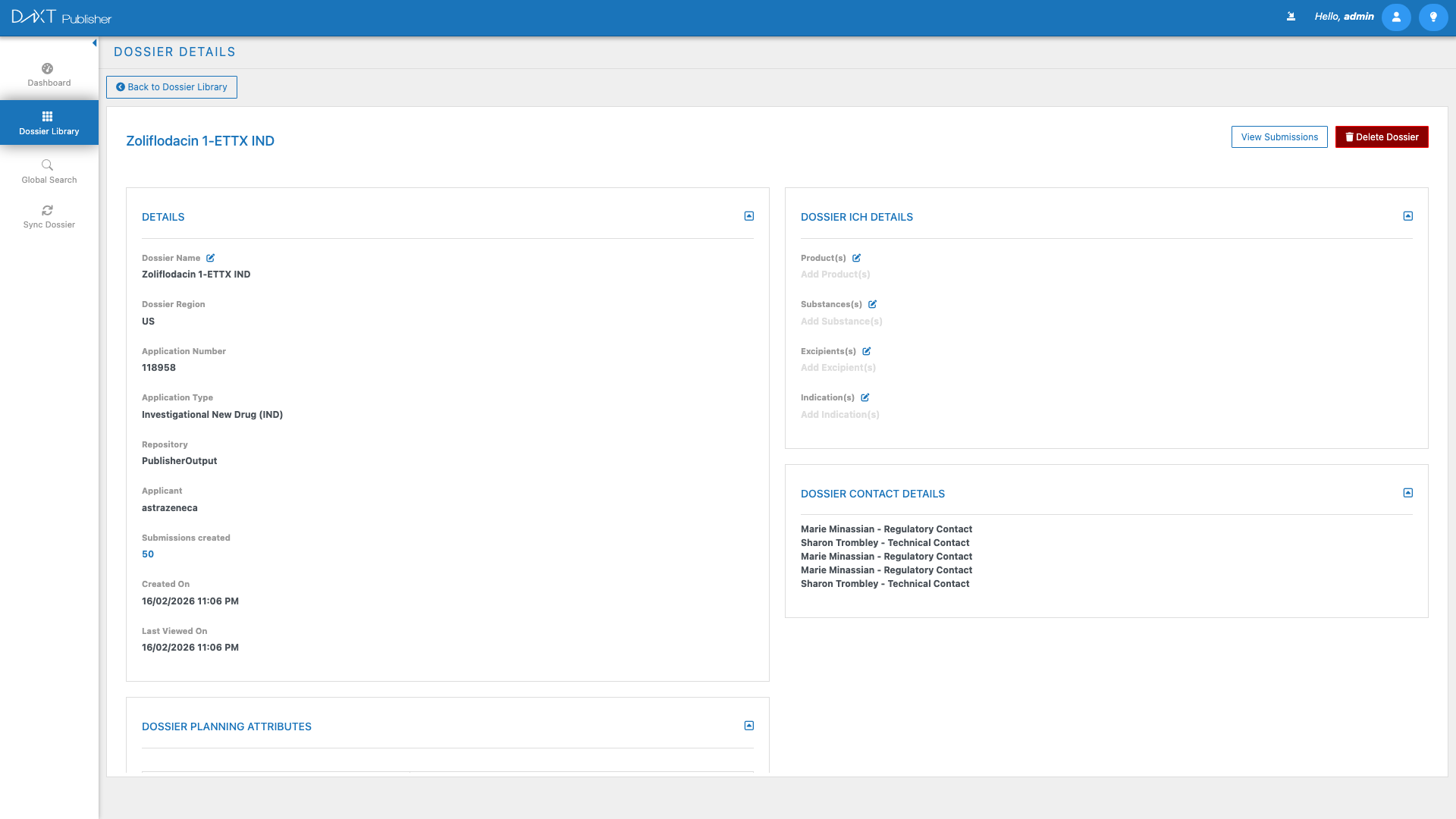
When you click on a dossier (single click, not double-click), a Submission Browser Sub-Panel opens below or beside the dossier list. This panel provides detailed information about the selected dossier and its submissions without leaving the Library view.
Dossier Details #
The sub-panel shows editable fields for the selected dossier:
- Dossier Name — Editable text field for renaming the dossier.
- Region — The regulatory region (read-only after creation).
- Country — The target country (read-only after creation).
- ICH Details — Expandable sections for Products, Substances, Excipients, and Indications. These fields capture the ICH-standard structured data for your dossier.
- Contacts — Contact information associated with the dossier, such as regulatory contact name, email, and phone.
- Planning Attributes — Key dates, milestones, and planning metadata for the dossier.
Submission List #
Below the dossier details, a list of all submissions within the selected dossier is displayed. Each submission shows its sequence number, type, status, and date. Double-click any submission to open it in the TOC Editor.
Opening Dossiers and Submissions #
To open a dossier or submission in the full TOC Editor, double-click the dossier tile or list row. This navigates you from the Dossier Library into the TOC Editor view where you can author and manage the submission structure, place documents, and perform lifecycle operations.
Creating a New Dossier #
Click the Create Dossier button in the toolbar to open the creation panel. You will be guided through selecting a region, country, and product. For a detailed walkthrough, see Creating a New Dossier Plan.
Frequently Asked Questions #
Can I view dossiers from all regions at once? #
Yes. The All Dossiers tab shows dossiers from all regions by default. Use the Region filter to narrow to specific regions if needed.
How do I find a dossier I worked on last week? #
Check the Recently Viewed Dossiers tab. It maintains a history of dossiers you have opened, ordered by most recent access.
Can I delete multiple dossiers at once? #
Yes. Use Ctrl + Click (or right-click > Select All) to select multiple dossiers, then click Delete in the toolbar. You will be prompted to confirm before deletion.
Are saved filters shared with my team? #
Saved filters are personal to your account. They are not visible to other users. If your team needs standardized filters, coordinate with your administrator.
What does “Regulatory Activity” show? #
The Regulatory Activity tab tracks significant regulatory events and milestones across your dossiers, such as submission filing dates, health authority acknowledgments, and approval status changes.
Related Articles #
- Creating a New Dossier Plan — Step-by-step guide to creating a new dossier.
- Submission Authoring with the TOC Editor — Learn the TOC Editor after opening a dossier.
- Filters, Favorites, and Views — Deep dive into the filter system, favorites, and view modes.
- Global Search — Search across all documents in all dossiers.
- Syncing Dossiers from Reviewer — Import dossiers from DnXT Reviewer.


