Overview #
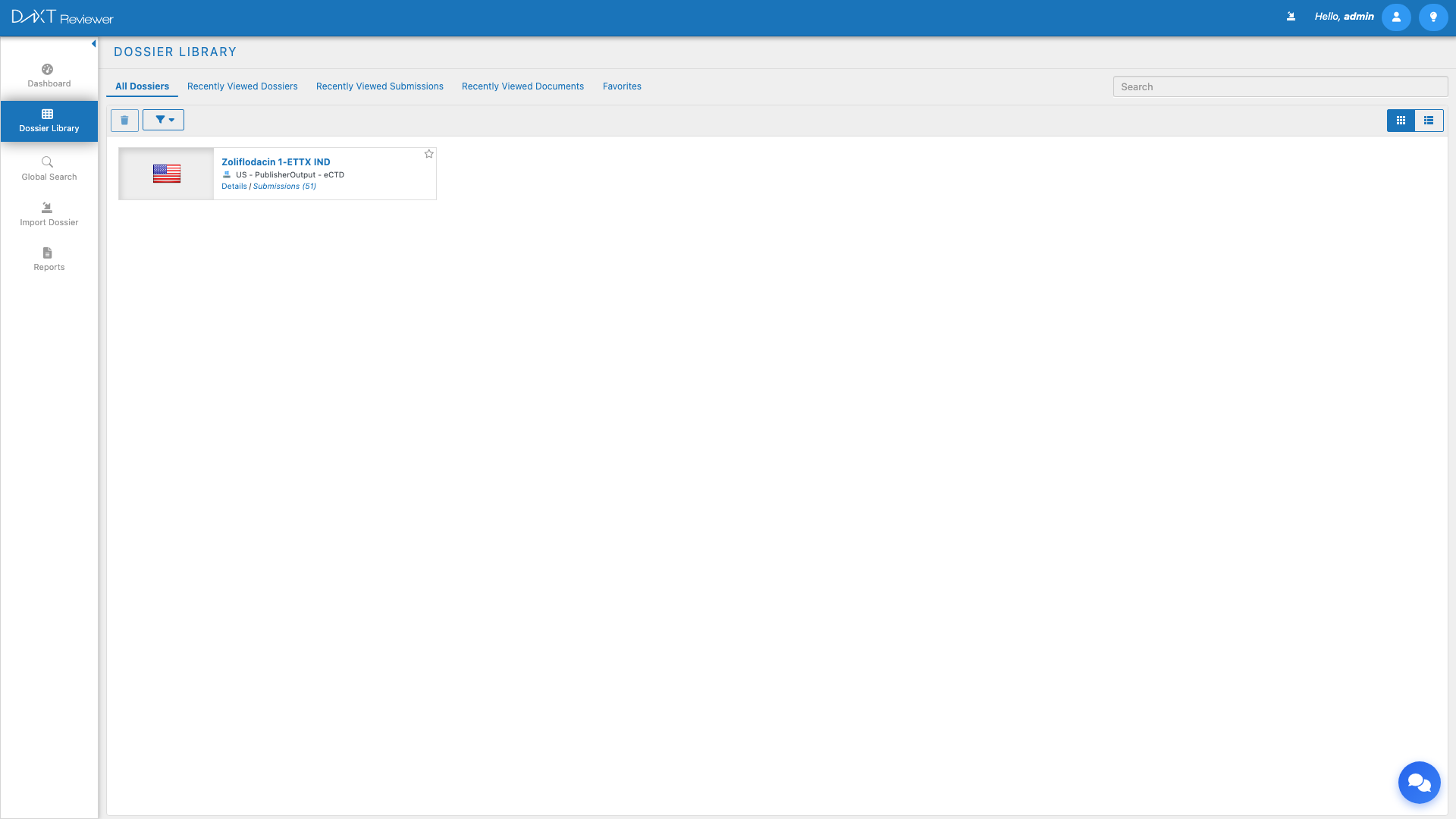
The Dossier Library is the central hub for browsing, searching, filtering, and managing all imported dossiers and submissions in DnXT Reviewer. Once you have imported dossier content (from a repository, ZIP upload, or folder upload), the Dossier Library provides multiple views and powerful filtering tools to help you locate and organize your regulatory portfolio. From here, you can open any dossier for detailed TOC review, export data, manage favorites, and track your recent activity.
Accessing the Dossier Library #
Click Dossier Library in the left sidebar to open the library. The library loads with the All Dossiers tab selected by default.
Library Tabs #
The Dossier Library is organized into six tabs, each providing a different perspective on your imported content:
| Tab | Description |
|---|---|
| All Dossiers | Complete list of all imported dossiers (applications). This is the default tab and provides the broadest view of your portfolio. |
| All Submissions | Lists all individual submission sequences across all dossiers. Use this tab when you need to find a specific sequence number or submission date. |
| Recently Viewed Dossiers | Dossiers you have recently opened, sorted by last access time. Quickly return to dossiers you were working on. |
| Recently Viewed Submissions | Individual submissions you have recently opened, sorted by last access time. |
| Recently Viewed Documents | Specific documents you have recently viewed in the document viewer. Provides quick access to documents you may need to return to. |
| Favorites | Dossiers and submissions you have explicitly marked as favorites for quick access. Favorites persist across sessions. |
View Modes #
The Dossier Library supports two display modes, toggled via the View button in the toolbar:
Tile View #
Displays dossiers as visual cards with thumbnail previews, application name, type, region, and key metadata. Tile view is ideal for visual browsing and is the default display mode.
List View #
Displays dossiers in a tabular format with sortable columns. List view shows more items per page and is better for scanning large portfolios or comparing metadata across dossiers.
Toolbar Actions #
The toolbar at the top of the Dossier Library provides several action buttons:
| Button | Description |
|---|---|
| Delete | Removes selected dossier(s) or submission(s) from Reviewer. A confirmation dialog is shown before deletion. |
| Filter | Opens the filter panel to narrow the displayed items by various criteria. |
| Save Filter | Saves the current filter configuration as a named saved filter for reuse. |
| View Toggle | Switches between Tile View and List View. |
| Export Dossiers | Exports the current list of dossiers (respecting active filters) as a CSV file. |
Filtering and Searching #
The Dossier Library provides a powerful filter system to help you locate specific dossiers or submissions within large portfolios.
Using Filters #
- Click the Filter button in the toolbar to open the filter panel.
- The filter panel displays a list of predefined filter categories (e.g., Region, Application Type, Status, Import Date).
- Expand a filter category to see available values.
- Check the boxes next to the values you want to include.
- The library updates in real time as you select filter values.
- Multiple filters can be combined — items must match ALL selected criteria (AND logic within each category, OR logic between values in the same category).
Saving Filters #
If you frequently use the same filter combination, save it for quick reuse:
- Configure your desired filter selections.
- Click the Save Filter button in the toolbar.
- Enter a name for the saved filter (e.g., “US NDAs”, “Pending Review”, “Q4 Imports”).
- Click Save.
Saved filters appear in the filter panel under a Saved Filters section. Click a saved filter name to apply it instantly.
Context Menu Actions #
Right-clicking on any dossier or submission in the library opens a context menu with additional actions:
| Context Menu Item | Description |
|---|---|
| Select All | Selects all visible items in the current tab |
| Deselect All | Deselects all currently selected items |
| Refresh | Reloads the library data from the server |
| Delete Application | Removes the selected dossier and all its submissions (with confirmation) |
| Delete Submission | Removes only the selected submission sequence from a dossier (with confirmation) |
Submission Browser Sub-Panel #
When you select a dossier in the All Dossiers tab, a Submission Browser sub-panel appears below or beside the main list, showing all submission sequences within that dossier. From this panel you can:
- View submission sequence numbers, dates, types, and descriptions
- View and edit the Status of each submission (e.g., Draft, Submitted, Approved)
- Click Save to persist status changes or Cancel to revert
- Double-click a submission to open it in the TOC viewer
Exporting Dossier Data #
The Export Dossiers button in the toolbar generates a CSV file containing the metadata of all dossiers in the current view (respecting any active filters). The export includes:
- Application name and number
- Application type (NDA, BLA, MAA, etc.)
- Region
- Number of submissions
- Import date
- Status
This export is useful for portfolio reporting, audit trails, and integration with external tracking systems.
Working with Favorites #
Mark any dossier or submission as a favorite for quick access:
- Hover over a dossier tile or list row.
- Click the star icon that appears.
- The item is added to your Favorites tab.
To remove a favorite, click the star icon again or navigate to the Favorites tab and remove it from there. Favorites are stored per user and persist across browser sessions.
Opening a Dossier for Review #
To open a dossier and begin reviewing its Table of Contents:
- Locate the dossier in any library tab.
- Click (or double-click in list view) to select it.
- The TOC viewer opens, displaying the submission’s hierarchical content tree on the left and the document viewer on the right.
See Reviewing Submissions with TOC for detailed instructions on navigating the TOC tree.
Frequently Asked Questions #
How do I search for a specific dossier by name? #
Use the Filter panel and type in the search field, or use the text search box at the top of the library. The filter updates in real time as you type, showing only dossiers that match your search text.
Can I sort dossiers by import date? #
Yes. In List View, click the Import Date column header to sort dossiers by when they were imported. Click again to toggle between ascending and descending order.
Why do I see a dossier in All Dossiers but not in Recently Viewed? #
The Recently Viewed tabs only show items you have actually opened (clicked into). Simply seeing a dossier in the All Dossiers list does not count as “viewing” it. Open the dossier to add it to your Recently Viewed list.
Can I bulk-delete multiple dossiers? #
Yes. Select multiple dossiers using Ctrl+click (or Cmd+click on Mac), then right-click and choose Delete Application. The confirmation dialog will show the count of items to be deleted.
How many items can the Recently Viewed tabs hold? #
The Recently Viewed tabs maintain a rolling list of the most recent items. Older entries are automatically removed as new ones are added. The exact capacity depends on your system configuration.
Related Articles #
- Importing Dossiers — How to import content into the library
- Reviewing Submissions with TOC — Working with the TOC tree
- Document Viewing and Annotations — Viewing documents and adding annotations
- Reports Overview — Generating reports from your library


