Overview #
The Labeling History Report in DnXT Reviewer provides a comprehensive view of all labeling and prescribing information documents across the lifecycle of a regulatory application. It tracks every version of labeling documents, organizes them by category and lifecycle state, and offers AI-powered change analysis to help you understand exactly what changed between versions and why. With five distinct views and robust filtering, this report transforms the complex task of labeling history review into an intuitive, data-driven workflow.
Accessing the Labeling History Report #
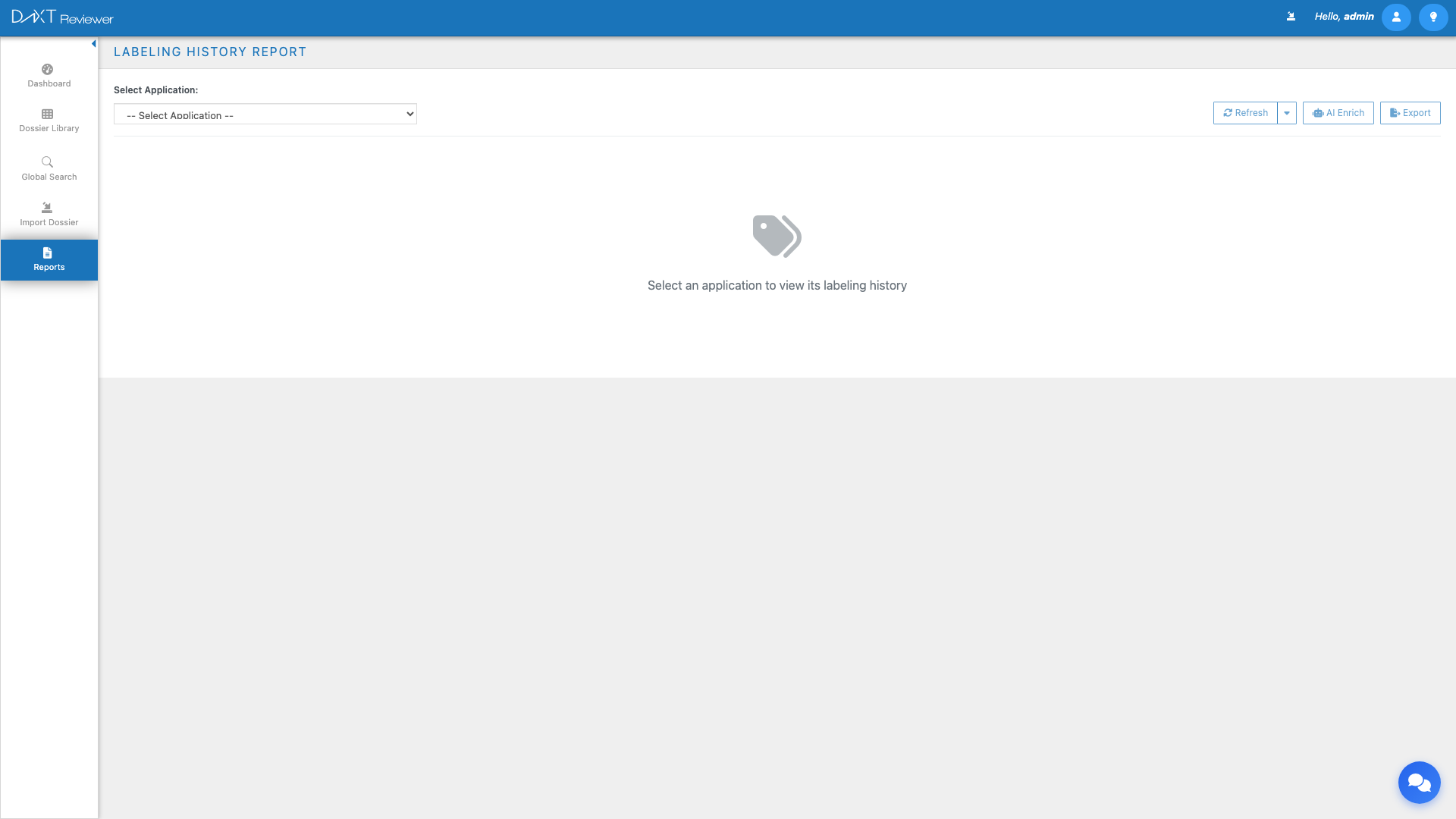
Navigate to Left Sidebar → Reports and click the Labeling History card, or access it from the Chronology Report navigation.
Report Toolbar #
The toolbar provides the following controls:
| Control | Description |
|---|---|
| Application Selector | Select which dossier to display labeling history for |
| Refresh | Reloads data; includes options for cache refresh or full re-extraction of documents |
| AI Enrich | Runs AI analysis across all labeling documents to generate change analyses and classifications |
| Export | Downloads the labeling history data as CSV or PDF |
Summary Cards #
Four summary cards provide an overview of the labeling document landscape:
| Card | Description |
|---|---|
| Total Documents | Total count of all labeling document versions across the application’s history |
| Current | Number of documents in the current (latest) version state |
| Superseded | Number of documents that have been replaced by newer versions |
| SPL Documents | Count of Structured Product Labeling (SPL) XML documents found |
Filters #
Below the summary cards, a filter bar allows you to narrow the displayed documents:
- Category — Filter by labeling document category (e.g., Package Insert, Medication Guide, Patient Package Insert)
- Section — Filter by specific labeling section
- Lifecycle — Filter by lifecycle state (Current, Superseded, All)
- Search — Free-text search across document titles and descriptions
Five Views #
The Labeling History Report offers five distinct viewing modes, each providing a different perspective on the data:
1. Table View #
The default view presents labeling documents in a sortable, filterable table. Columns include document title, category, section, version number, sequence, date, lifecycle status, and file type. Click any column header to sort.
2. Timeline View #
The Timeline View presents labeling documents on a visual timeline, organized chronologically by submission date. Each entry is plotted on a horizontal axis, making it easy to see the cadence of labeling changes over the application’s lifetime. Hover over timeline markers to see document details.
3. Doc History View #
The Doc History View groups documents by their identity (same document across versions) and shows an expandable version timeline for each document. This is the most powerful view for understanding how a specific labeling document has evolved.
Version Timeline #
For each document group, an expandable section shows every version in chronological order, with:
- Version number and sequence
- Submission date
- Operation type (New, Replace, Append)
- File size and format
AI Change Analysis #
The Doc History View integrates AI-powered change analysis between consecutive versions. When AI Enrichment has been run, each version transition displays a detailed analysis:
| Analysis Field | Description |
|---|---|
| Change Type | Classification of the change (e.g., Safety Update, Efficacy Data, Administrative, Formatting) |
| Severity | Impact level (High, Medium, Low) indicating the significance of the change |
| Summary | Brief narrative description of what changed |
| Details | Detailed explanation of the specific changes made |
| Rationale | Inferred reason for the change based on context and regulatory patterns |
| Sections Affected | List of specific labeling sections that were modified |
| Confidence | AI confidence score (percentage) for the analysis accuracy |
4. Document Sets View #
The Document Sets View groups labeling documents into logical sets based on their function (e.g., Physician Labeling, Patient Labeling, Promotional Materials). This view helps you understand the complete labeling package at any point in time and ensures all required documents are present.
5. FDA Comparison View #
The FDA Comparison View provides tools for comparing the submitted labeling against FDA-approved or reference labeling. This view is specifically designed for US regulatory submissions and helps identify deviations from the approved label.
Analysis Results Modal #
When you click on an AI Change Analysis entry in the Doc History View, an Analysis Results Modal opens providing an expanded view of the analysis:
Side-by-Side Comparison #
The modal displays the previous version and the current version side by side, with changes highlighted. For text documents, additions are shown in green and deletions in red.
Image Comparison #
For documents that contain images or visual elements, the modal provides image comparison tools with:
- Synchronized scrolling — Both panels scroll together so you can compare the same region of both documents simultaneously
- Synchronized zoom — Zoom level is synchronized between panels for consistent comparison
- Overlay mode — Toggle to overlay the two versions with differences highlighted
AI Enrichment Workflow #
To generate AI-powered analysis for your labeling documents:
- Select an application from the Application Selector.
- Click the AI Enrich button in the toolbar.
- Reviewer analyzes all labeling documents across all sequences, comparing consecutive versions.
- A progress indicator shows the analysis status.
- When complete, change analyses appear in the Doc History View next to each version transition.
Refresh Options #
The Refresh button offers two modes:
- Cache Refresh — Reloads data from the Reviewer database without re-extracting document content. Faster but does not pick up changes to underlying documents.
- Re-extract — Re-extracts content from the original document files and rebuilds the analysis. Use this when source documents have been updated or when initial extraction may have been incomplete.
Exporting Labeling History #
Click Export to download the labeling history data. The export respects active filters and view settings, including:
- Document metadata (titles, categories, dates, versions)
- Lifecycle status information
- AI Change Analysis results (if generated)
Frequently Asked Questions #
What types of documents does the Labeling History track? #
The report tracks all documents classified as labeling, prescribing information, or package inserts within the eCTD Module 1 structure. This includes Package Inserts (USPI), Patient Package Inserts, Medication Guides, and Structured Product Labeling (SPL) XML files.
How does the AI determine change severity? #
The AI classifies severity based on the nature and scope of the change. Safety-related updates (new warnings, contraindications, adverse reactions) are typically rated High. Efficacy data additions are rated Medium. Administrative and formatting changes are rated Low.
Can I run AI analysis on a single document version instead of all versions? #
The AI Enrich button in the toolbar processes all documents at once. For individual version analysis, click the specific version in the Doc History View and use the analysis tools available in the Analysis Results Modal.
Why do some documents show “No Analysis Available”? #
This appears when AI Enrichment has not been run, when the document is the first version (no previous version to compare against), or when the document format does not support text extraction for comparison.
How is the confidence score calculated? #
The confidence score reflects the quality of text extraction, the clarity of changes between versions, and the AI model’s certainty in its classification. Scores above 80% generally indicate reliable analysis. Scores below 60% suggest the results should be manually verified.
Related Articles #
- Reports Overview — All available report types
- Chronology Report — Submission timeline and history
- Document Viewing and Annotations — Viewing individual documents
- Specification Dashboard — CMC specification tracking


