Overview #
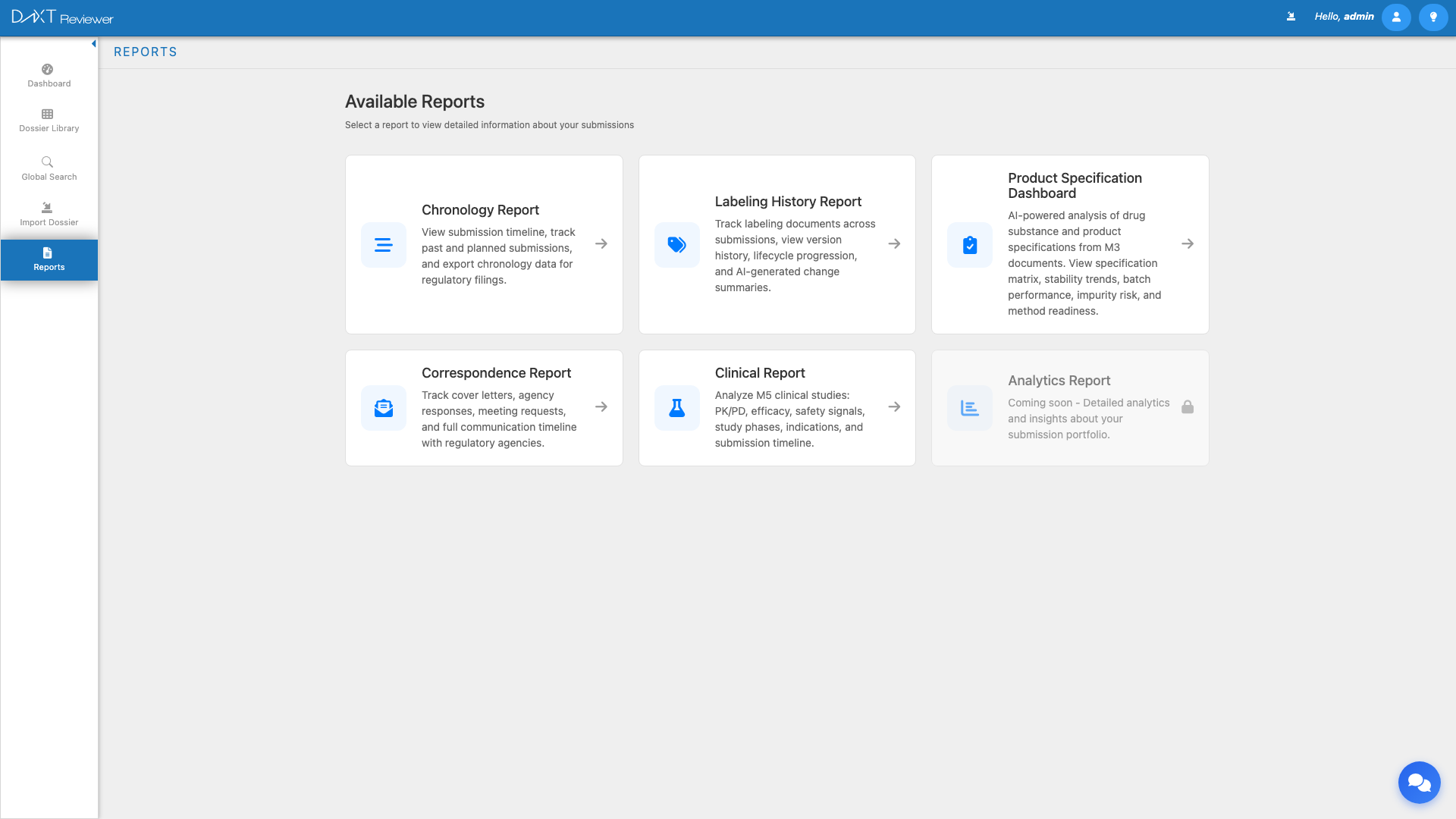
The Reports module in DnXT Reviewer serves as a central hub for accessing all analytical and reporting capabilities. Rather than presenting a single report, it provides a card-based navigation interface that connects you to six specialized report types. Each report offers deep analysis of a specific aspect of your regulatory portfolio, from submission timelines to labeling changes, specification compliance, correspondence tracking, clinical data, and advanced analytics.
Accessing the Reports Hub #
Click Reports in the left sidebar to open the Reports hub. The main workspace displays six report cards arranged in a grid layout. Each card shows the report name, a brief description, and an icon representing the report type.
Available Report Types #
The following table summarizes all six report types, their purpose, and their current availability:
| Report | Description | Status |
|---|---|---|
| Chronology | Interactive timeline of all submission sequences for an application, including past filings and future planned submissions, activity heatmaps, and AI-generated summaries | Active |
| Labeling History | Comprehensive tracking of labeling and prescribing information documents across all versions, with five viewing modes and AI-powered change analysis | Active |
| Specification Dashboard | CMC (Chemistry, Manufacturing, and Controls) specification tracking with health scores, stability trending, batch performance, impurity risk, and method readiness | Active |
| Correspondence | Tracking of all communications with health authorities, including letters to/from agencies, meetings, questions/RFIs, commitments, and AI classification | Active |
| Clinical | Analysis of clinical study reports and clinical data packages within submissions | Active |
| Analytics | Advanced portfolio-level analytics and cross-application insights | Coming Soon (Disabled) |
How to Use the Reports Hub #
Using the Reports hub is straightforward:
- Navigate to Left Sidebar → Reports.
- Review the six report cards to identify which report meets your current need.
- Click the report card to navigate directly to that report’s full interface.
- Each report opens as a dedicated view with its own toolbar, filters, and visualization options.
Report Type Details #
Chronology Report #
The Chronology Report provides a complete timeline view of an application’s submission history. Key features include:
- Summary statistics (total sequences, date ranges, submission/planned counts)
- Interactive activity heatmap showing submission density by month and year
- Detailed chronology entries table with inline editing
- Planned submission management for forward-looking regulatory planning
- AI enrichment for automatic summary generation
- CSV and PDF export
Best for: Understanding the complete filing history of an application, planning future submissions, generating audit-ready chronology documentation.
Read the full Chronology Report guide →
Labeling History Report #
The Labeling History Report tracks every version of labeling and prescribing information documents. Key features include:
- Five viewing modes: Table, Timeline, Doc History, Document Sets, FDA Comparison
- AI-powered change analysis with severity classification
- Side-by-side document comparison with synchronized scroll and zoom
- SPL document identification and tracking
- Lifecycle state filtering (Current, Superseded)
Best for: Tracking labeling evolution, understanding what changed between versions, preparing for labeling supplements, ensuring labeling compliance.
Read the full Labeling History Report guide →
Specification Dashboard #
The Specification Dashboard provides CMC specification tracking and health scoring. Key features include:
- Overall specification health score with configurable scoring settings
- Five analysis tabs: Specification Matrix, Stability Trending, Batch Performance, Impurity Risk, Method Readiness
- Visual risk distribution with charts and tables
- Direct access to source PDF documents
- AI-powered compliance analysis
Best for: CMC reviewers monitoring specification compliance, stability trending, impurity tracking, and analytical method validation status.
Read the full Specification Dashboard guide →
Correspondence Report #
The Correspondence Report tracks all communications with health authorities. Key features include:
- Eight tabs covering all communication types: All, To Agency, From Agency, Meetings, Timeline, Questions/RFIs, Commitments, References
- Meeting management with type classification (Type A/B/C, Pre-IND, Pre-NDA, etc.)
- AI classification with confidence scores
- Visual timeline with year dividers
- Commitment and RFI tracking
Best for: Managing agency interactions, tracking open questions and commitments, preparing for meetings, maintaining a complete correspondence record.
Read the full Correspondence Tracking guide →
Clinical Report #
The Clinical Report focuses on clinical study data within submissions. It provides analysis of Module 4 (Nonclinical) and Module 5 (Clinical) content, including study report summaries, data extraction, and cross-study comparisons.
Best for: Clinical reviewers analyzing study reports and clinical data packages.
Analytics (Coming Soon) #
The Analytics report will provide portfolio-level insights and cross-application analytics when released. This includes trend analysis across multiple applications, benchmarking against industry patterns, and predictive insights for regulatory timelines.
Common Features Across All Reports #
All active report types share several common features:
| Feature | Description |
|---|---|
| Application Selector | Every report has a dropdown to select the application (dossier) to analyze |
| Refresh | Reload data from the server to see the latest information |
| Export | Download report data as CSV or PDF |
| AI Enrichment | AI-powered analysis to generate insights, summaries, and classifications |
| Summary Cards | At-a-glance statistics at the top of each report |
| Filters | Filter controls to narrow displayed data by various criteria |
Choosing the Right Report #
Use this decision guide to select the most appropriate report for your needs:
| If You Need To… | Use This Report |
|---|---|
| See the complete submission timeline for an application | Chronology |
| Track changes to labeling documents across versions | Labeling History |
| Monitor CMC specification compliance and trends | Specification Dashboard |
| Track agency communications and meeting history | Correspondence |
| Analyze clinical study reports in submissions | Clinical |
| Plan future submissions for an application | Chronology (Add Planned Submission feature) |
| Compare document versions side by side | Labeling History (Doc History View) |
| Track open questions and commitments to agencies | Correspondence (Questions/RFIs and Commitments tabs) |
Frequently Asked Questions #
Can I access reports without importing dossiers first? #
Reports require imported dossier data to function. You must import at least one dossier before the reports will have any data to display. The report interfaces will load but show empty states until data is available.
Do reports update automatically when I import new submissions? #
Reports load data on demand when you navigate to them. After importing a new submission, navigate to the relevant report and click Refresh to see the updated data.
Can I generate reports for multiple applications at once? #
Most reports operate on a single application at a time, selected via the Application Selector dropdown. The Chronology Report’s Process All Apps button is an exception that processes AI enrichment across all applications. Cross-application analytics will be available when the Analytics report is released.
When will the Analytics report be available? #
The Analytics report is under active development. Check with your DnXT administrator or the DnXT Solutions support team for the latest release timeline.
Are reports exportable for regulatory submissions? #
Yes. All active reports support export to CSV and/or PDF formats. Exported files can be used in regulatory documentation, audit responses, and team communications.
Related Articles #
- Chronology Report — Detailed guide to the submission timeline report
- Labeling History Report — Document version tracking and AI analysis
- Specification Dashboard — CMC specification health and compliance
- Correspondence Tracking — Agency communication management
- Dashboard Overview — The Intelligence tab also provides portfolio analytics


